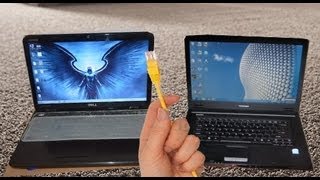
 Whazz up guys? I am Wajahat Ahmad and this is our new tutorial on networking, we are going to show you how you can connect two PC's with each other using Lan Cable Let me introduce myself I am Waqas Ahmad Wajahat's YouTube partner And today we are working on tutorial and I'm helping out Wajahat on his Networking Tutorial So we have two Laptops Fujitsu and uh... IBM, both have Win 7
Operating System 64bit Operating System installed and there's also a Networking Cable Of course we will do the Networking Sharing VIA a Networking Cable Now!! We are going to connect the Lan Cable with one PC. Like this make sure it is connected properly, and.. Now connect the other End with your 2nd PC like this Now I'm here at the PC 1 and i want to share my E:\\ Drive in my
computer so just make sure that you disable
your Wifi at both PCs and uh...
To share my drives,
What I would need, I would need to enter the IP Settings for that so I will access the Open Network and Sharing Center and that i would go to local area connection
that is my Lan connection right now as you can see uh.. Then I will access the properties and then the internet protocol version 4 properties so here you can see uh.. The IP Address are automatically set right now
here, but for that.. For now we need to enter the IP.
And what i would enter keep in mind that as we are not using internet so that uh... IP should not uh.. It can be valid, but it is actually not
necessary. We can enter invalid IP's as well for now I'm entering "192.168.1.20" You press the tab button and it will automaticly enter the sub net mask now I just don't think so that I need to fill up the rest of these That is Default gateway, Preferred DNS Server, Alternate DNS Server just leave it here like that So now we are at PC 2 and I would do the same here at this PC as well but i would enter different IP.
But not totally different, but similar uh let me just show you here doing the same exact things if you remember uh.. At the PC 1 I entered
"192.168.1.20" But this would make these both addresses of this PC the same as we know in our daily life the different Residentials can't have the same address so.. We would try something different. A little
different so this is here "21" you press the tab button again and press OK.
Now our PC's are connected to each other so now as you want to share this E:\\ Drive so I would do I would access the properties of this Drive and uh... The I will access the Sharing tab here and I would then go into the Advance settings Advance Sharing make sure you mark this "Share this folder" and uh.. In permissions it is up to you how much
control you want to give it to the other pc user right now i'm giving it full control
so that when the other guy accesses this disk drive he has a full uh.. He/she has a full control over it.
He can delete the data, he can read ir and modify the data whatever he wants. OK. So if I. Unmark this full control and If I just mark the Read so that you just don't want
to let other users ruin your data or other users modify your data so this option is meant for you then but right now i'm using a full control option So I'm applying it here "OK" uh..
Sometimes users get a problem umph with the security when they access
it from other user it gives some kind of error make sure that you have added "Everyone" to here in security group of users who can access your PC. If it is not added what you will do, you will go to Advanced settings the you will Change Permissions and you will add and uh... And again you will access the Advance menu and you will find with whom you want to share your data there would be "Everyone" here like this and if the "Everyone" user is not added into your security then you will click the OK button but right now i'm not going to do that
as "Everyone" is already added there. So this is it.
Now i'm going back to the other PC. So now we are almost done now access the start menu and type double Slash \\ and the IP of the PC 1 that is "192.168.1.20" You click this button you will get your E:\\ Drive shared the drive you have shared I click this and this is my data at the other PC. Now anddd for example I want to copy a Movie Furious 6. Let's copy this.
Ctrl + C. I can even cut this folder now, as you know I have given a full control to this PC user Cross this session and CTRL + V. And you can see it's 930 MB of data and it is transferring the data at 10 Mbps Speed now if you share your data VIA wifi. It would transfer your data at 1 Mbps transfer speed so that is a kind of very slow thing so I would suggest you: share your data VIA
Networking cable so this is how it works Thanks for watching our video and uh please Subscribe to our Channel and leave a comment if you have any problems.
We would be very very keen to help you..

No comments:
Post a Comment